
Today's question comes from Dale at NFi Studios in Orlando, FL - my home town:
Essentially:, what i'm trying to do is
1. Determine the current nodes taxonomy terms
2. Determine all other pages that share taxonomy terms
3. Display the title (and link) to those pages in a block
Using Drupal 6.2 and Views - Looked at a few modules, but nothing quite
exact - Reviewing some module snippets right now to see if I can
potentially use an argument to do it.
Dale asks a good question: before the release of Panels for Drupal 6, how can one associate a block with the node it's being displayed next to without writing a custom module? It turned out to be simpler than I expected. I actually started going down the path of custom modules, but in the process I noticed that Views still have the ability to load Arguments with PHP Code, and my solution wrote itself.
Dale, you're already pretty far along: you know you need a view inside of a block, displayed based on taxonomy terms to relate the view to the pages. Instead of giving you a full-fledged tutorial on Views and the Black Arts, you'll be getting a recipe that outlines how to create the block in question.
First, you'll want to download and install Views 2 for Drupal 6, currently in Beta 4, then enable the module under admin/build/modules - remember that Views also requires you to activate Views UI, as the views.module is more of an API for creating views.
The first step in your new Views journey is to Add a new view at admin/build/views. Just click on the tab near the top of the screen:
Now you'll be asked to name your view something computer-friendly - in this case you'll name it related_by_term: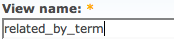
Once you click through, you'll be presented with the granddaddy of all administration screens, but don't be afraid, things move pretty quickly in here if you know what you're doing. Notice the Orange text in the top right: New view. Until you push the Save button at the bottom of the screen, all you hard work could be lost, and especially don't forget to save once you've finished configuring your view.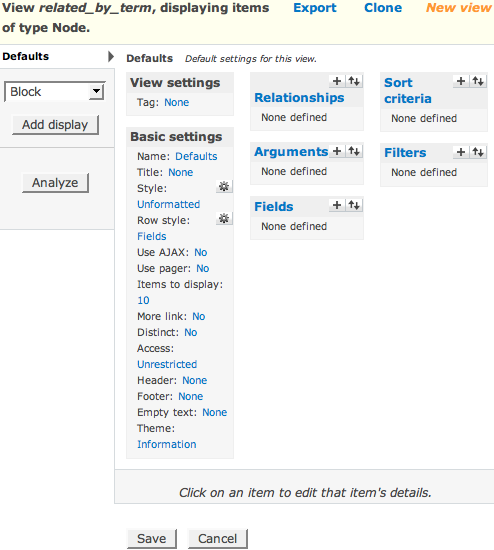
I want you to skip all those fancy options and dive right in: you've got to eat your vegetables, so let's get the hard part over with and set up the arguments:
Arguments were the most powerful (and hardest to understand) feature of the old Views - think of this as the WHERE clause of your SQL statement. Your first and only argument will be keyed off of a Taxonomy Term ID: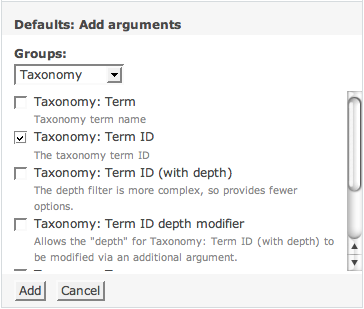
Since you don't have Panels at your disposal, you'll need to specify a Default Argument. There are several (powerful) ways to accomplish this, but in your case, resort to tried-and-true PHP Code. The code displayed here loads the object for the current $node (if any) and concatenates a list of all the Term IDs on that node, then returns the string to Views in the format 1+2+3, just like the arguments on taxonomy/term pages: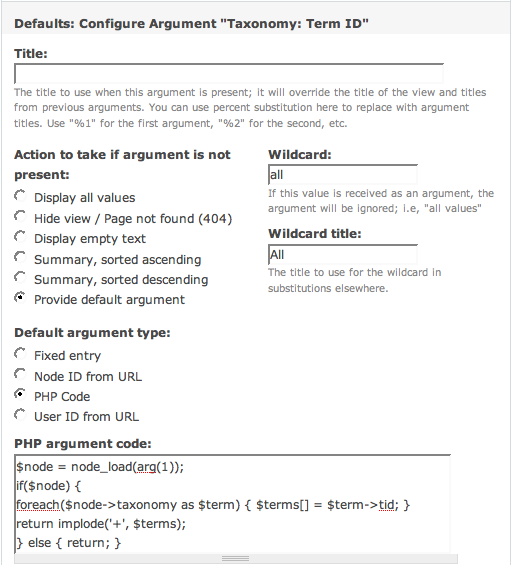
In order to activate this muitliple-term-driven argument scheme, you need to check a few boxes below the PHP code. The first sets up the fact that you can use the 1+2+3 format, and the second removes duplicate entries that have more than one term. Make sure you read the warnings about performance; if you don't use multiple taxonomy terms, leave this box unchecked. You can proceed by clicking the Update button: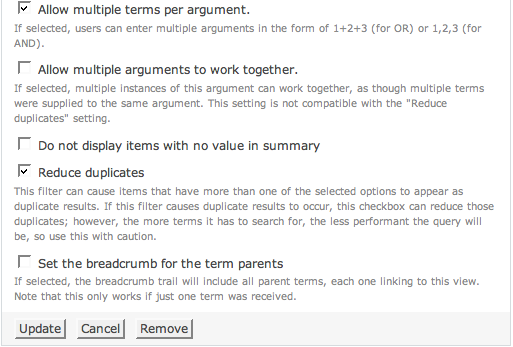
At this point, you'll see an error message inviting you to extract some fields in your view, which is set up to display fields by default. If you wanted to view full nodes or teasers, you could change that option and be safe, but the block you want to build needs titles that link to the node:
Now you want to tackle adding fields to your view. This is the building block of any view, analogous to the SELECT part of a SQL statement:
You should recognize this next picture, because it's very similar to the way you chose your argument type, and how you'll choose your filter in the future. Use the Add button to move to the next screen: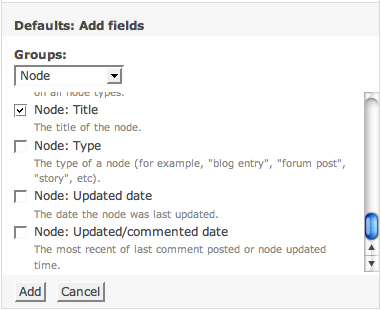
If you don't delete the word "Title" in the Label text box, it will appear next to all your links. There are some situations where this is wanted; yours is not one of them. You also said you wanted the titles to be links, so check that box: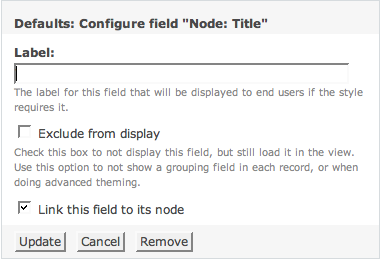
At this stage, you should be able to get a working preview of your view. Just type a number or a 1+2 in the arguments area and push the button to trigger the AJAX. That blue text is your view, and there's also some geeky information below. Notice that currently "This display has no path"; that's OK, you want a block: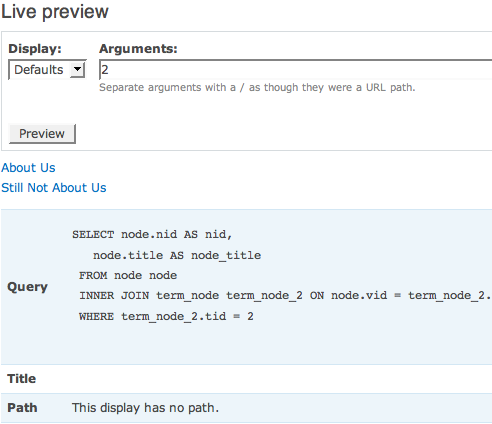
At this point, you still haven't told Views that you want your view to be a block, so make sure you choose block from the drop-down in the main interface. If you're working strictly with Page nodes, you may also want to throw a filter on your view to limit the results. You also should never forget the all-important Save button: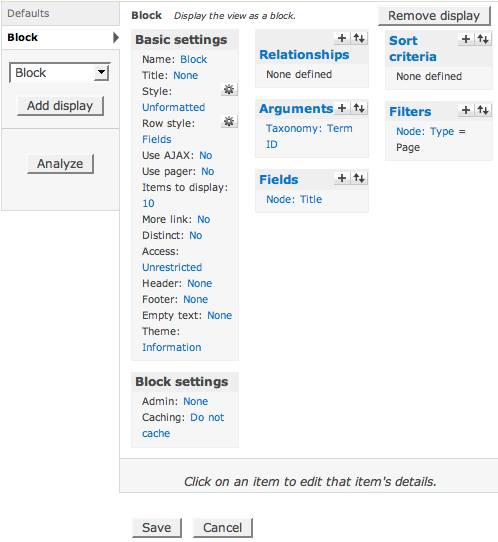
The last thing you need to view is activate your block on admin/build/block (you may need to use block visibility rules, but that's another tutorial), and finally visit one of your Taxonomy-tagged pages to see if your other taxonomy-tagged pages shows up. If you've followed all the steps here, everything should be a snap. Maybe the best feature about your new block is the handy links that pop up when you mouse over your new block (if you have administer views access, at least):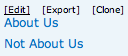
Well Dale, I think that should just about answer your question. Since this is my first Drupal 6 tutorial, I'll have to say, this was a lot more fun for me than I'm sure the last few days have been for you. Wave hello to Corey and Sterling and Derek and Daniel and the other NFi folks, and I hope I was able to save you some precious time with this post.
Comments
This is a fantastically done
This is a fantastically done Views 2 tutorial. Thank you for writing it!
BTW folks, the above comment
BTW folks, the above comment is by the guy who WROTE Views 2...
Thanks, Earl!
I hate to be "that guy" but
I hate to be "that guy" but any comment on how this would be done differently in Drupal 5?
wouldn't really be that
wouldn't really be that different in Drupal 5, but the Interface to Views is COMPLETELY different, so none of the screenshots apply here. You would still use the same code as your default argument, still use the same fields and such.
This is great Ryan. It's an
This is great Ryan. It's an exceptional demonstration of your expertise along with your willingness to help Orlando techies. You're a true community leader!
Excellent, I'll be using
Excellent, I'll be using this
Hi, first of all, thanks for
Hi,
first of all, thanks for the great tutorial!
Unfortunately, I can't get it running under D6 (PostgreSQL) - are there any problems with PostgreSQL?
I have followed the turial step by step and get a error as soon as I inserted the php and press update.
Basically, I want to use your basic idea to create a blockview that, in addition to the taxonomy/term view,
displays all nodes with the same tid and then use filters to decide whether the nodes (a vocabulary that organizes the area where they are displayed) are displayed with the content-area or inside the block.
In D5 I supplied the argument within the URL - this worked for Blockviews as well in D5.
I have spent hours but somehow I don't get this rather easy setup running in D6..
Any help is appreciated!!
Hannes
This is exactly what I was
This is exactly what I was looking for. Very nice tutorial and an elegant solution. Thanks for sharing!
sucked
sucked
I don't seem to be able to
I don't seem to be able to match the new content type I created and the views. I had created a view, to which I added the fields that I needed from the content type I had just populated with some dummy data, but all I keep getting is a blank table. Not sure what I am doing that is wrong. I must have spent hours on this, still cannot resolve it.
I hope I can proceed, as this is a big stumbling block for me. I am hoping to create content types and views, as it is a wonderful modules.
Good article. What if (as
Good article. What if (as seems to me would be more common) you have a page whose main content is generated by a View, and that view also has blocks defined? Seems to me that Views should have an option to indicate that the blocks for the view should go into particular regions on the same page, take the same args as the page (or at least, same args as default), and output cleanly. Maybe that's the whole idea of Panels, but it seems like Views is already tantalizingly close.
Can you offer a code snippet for Default Arg, similar to above, for grabbing from the URI, consistent with the main page that specified foo/% in the Page URL? It seems like it would be an even handier capability.
Just one thing... First,
Just one thing...
First, thanks for the tutorial. The only thing I ran into in creating the related-pages block with views is that the block appears ABOVE the other blocks in the region, EVEN THOUGH I POSITION THE RELATED-PAGES BLOCK BELOW THE OTHER BLOCKS FOR THE REGION in the Blocks admin section.
Is there a tweak that will fix this? Do I need to go under the hood and access a theming function, for example, to position this at the bottom of the region?
Or, is the only way to position a block created in Views to create a special region exclusively for this block and position the region in page.tpl.php where the block should appear?
Thank you for your assistance. And again, nice tutorial!
Thanks a lot for this
Thanks a lot for this tutorial. This pointed me in the right direction. Since I only want to consider a specific vocabulary with only one term by node I modified the PHP code as follows:
<?php

$node = node_load(arg(1));

if ($node) {

  $terms = taxonomy_node_get_terms_by_vocabulary($node, 1);

  return $terms[1]->tid;

}

return false;

?>
There is one problem that remains. The node I am currently viewing also appears in the related block. I want to exclude it but don't see how. Any ideas?
I just found a solution. I
I just found a solution. I added the node id as a second argument, selected Node ID from URL as Default argument type and checked Exclude the argument .
Views is great and even greater, if you know how to use it ;)
I found this very helpful in
I found this very helpful in learning the pieces needed to make this happen. I am having a problem though. I think, because I'm using the paths module, that the path doesn't have any nid in the path to pull so that the PHP code will properly find the terms.
I'm using my limited PHP and the Drupal API site to try to find another more dependable method to discovering the nid, but if anyone else has ideas, I'd be glad to hear them. They are probably better than what I come up with anyhow. :-)
I followed the instructions
I followed the instructions exactly and am getting the following error on pages with the block:
warning: implode() [function.implode]: Invalid arguments passed in /Users/kmadel/htdocs/ctv-drupal/sites/all/modules/views/includes/plugins.inc(3840) : eval()'d code on line 6.
I am using path auto, but I tried the URLs of type node/47 as well. Wondering if this is a new bug in Views or related to Drupal 6.4.
I am using View 6.x-2.0-rc1 and Drupal 6.4
Good stuff. I was going to
Good stuff.
I was going to mention that if $terms is empty (no taxonomy) php will complain like this. it will try to implode an empty array ($terms).
You can fix this by adding a test to the if statement
Change
if($node) {
to
if ($node && $node->taxonomy) {
Thanks this was helpful, the
Thanks this was helpful, the only thing I'm trying to figure out is how to adjust the "more" page to all related nodes and not just the specified amounts in the block.
Hy Ryan, Just been working
Hy Ryan,
Just been working through your excellent tutorial - new to Drupal.
The homepage link shows you what i am trying to achieve - a block that provides navigation through a category showing previous and next page titles as links.
I am sure that views can do this - a bit above my head.
Any suggestions?
Cheers!
Mike
This sounds exactly what I
This sounds exactly what I needed, only problem I couldn't seem to get it working. I followed every step above, but as I viewed any node page, I got the follow error message instead:
Fatal error: Cannot access empty property in /home/xxx/public_html/sites/all/modules/views/plugins/views_plugin_argument_default_php.inc(48) : eval()'d code on line 3I'm on Drupal 6.6 and Views 6.x-2.1. Desperately need help! :(
I solved the mystery! It
I solved the mystery! It turned out to be a typo issue, some spaces in the code caused the error. For the benefit of others who might face the same issue, here's the code (that you can copy and paste):
$node = node_load(arg(1));

if ($node){

foreach($node->taxonomy as $term){$terms[]=$term->tid;}

return implode('+',$terms);

}else{return;}
Thanks again to the Ryan the author of this tip!
Outstanding tutorial.
Outstanding tutorial. Exactly what I was looking for. Thanks!
I've got it all working and I've added some extra filters etc, but I get similar error to above (but I think it's only on nodes that don't have any categories/taxonomy options):
warning: implode() [function.implode]: Invalid arguments passed in /home/mysite/public_html/modules/views/plugins/views_plugin_argument_default_php.inc(48) : eval()'d code on line 4.
I copied the above text and still get the same issue
Stu
I had the same issue and then
I had the same issue and then realized that I didn't have a taxonomy vocab hooked up to my content type. From my understanding the views is looking for the terms, but if it doesn't find a term it will spit out this error. I added some terms and it works great!
Stunning tutorial. I've
Stunning tutorial. I've always known that views2 was more powerful than I'd explored but this really made it clearer.
I'm also struggling with the combination of pathauto paths and excluding the node that is itself being displayed (since the node id is missing from the URL) but otherwise a very nice and easy to follow tutorial.
Thanks for that - you just saved me hours of work ;)
Wow. Thanks so much for this
Wow. Thanks so much for this tutorial, I myself was having a similar error issues, and when copied the fixe code, all worked great!
This view works great! How
This view works great! How you exclude the current post/story?
thanks for this tutorial! how
thanks for this tutorial! how would i change to code to limit this to a specific vocabulary and stil lhandle multiple terms? i tried using a filter but that did not work...
Thanks for the great
Thanks for the great tutorial. For the case, where the main node has multiple teasers each with the same taxonomy term, the above code does not seem to filter the block view correctly.More specifically, e.g., when the node contains list of feed articles, each article with the same taxonomy term, the block view should present the related articles (in my case Voting API Top Content) with the same taxonomy term. However, block view does not filter out other taxonomy terms' related content.Any suggestions appreciated.
very cool and just what I
very cool and just what I wanted!Here is the code with John's addition if you're like me and have issues with typos.$node = node_load(arg(1));if ($node && $node->taxonomy) {foreach($node->taxonomy as $term) {$terms[] = $term->tid;}return implode('+' , $terms);} else { return; }John's addition stops that annoying error on pages without terms. You could also exclude those pages.
it didn't work for me until I
it didn't work for me until I used this comments code. For some reason it wasn't seeing any tid - then cut and paste this an bingo!
$node = node_load(arg(1));
if ($node && $node->taxonomy) {
foreach($node->taxonomy as $term) {$terms[] = $term->tid;}
return implode('+' , $terms);
} else { return; }
Great Tutorial!As the above
Great Tutorial!As the above shows the node's term siblings, would it be possible to show the node's term children?I've tried changing the 'Taxonomy : Term ID' argument to 'Taxonomy : Term ID (with depth)' and setting the depth to 1, but it didn't work. I guess it would need something changed in the PHP code. Is it possible?
I stumbled across this while
I stumbled across this while looking for a bit more info on setting up a view and your mini tutorial was perfect. Thank you.Chris
how come I don't see customer
how come I don't see customer argument type section in the latest drupal 6.8 + view2 ?
so i have no way to input the PHP code.
what the heck is going wrong? do i miss any thing?
I'd been struggling to use
I'd been struggling to use Views for a while but this tutorial has helped me lots.
You are right, once I hit the 'mother of all admin' screen I just got overwhelmed.
Thanks for the tips :)
Ryan. Thanks for the awesome
Ryan. Thanks for the awesome recipe.
How can we exclude the parent node from the view?
For example, if you land on the "About Us" page, view should only list OTHER nodes with matching term_id (eg. "Not About Us") excluding the parent node (eg. "About Us").
Any thoughts? Maybe a node-id filter not equal to a node id token?
Solved. To exclude the
Solved.
To exclude the current node from the view:
1) Add another argument = Node:Nid
2) Select "Action to take if argument is not present" = "Provide default argument"
3) Select "Default argument type" = "Node ID from URL"
4) Select "Exclude the argument"
Done
Thanx! This is exactly what I
Thanx! This is exactly what I needed on top of this excellent tutorial.
I've been staring at that 'arguments' feature of Views for a while, now I get the power I presumed it had! However, I still wouldn't come up with this myself, where can I read up on this? Is this functionality documented somewhere?
I was really afraid I had to tell a client that they'd have to create another instance of a view for each different page... now they don't even have to know Views exist! I'm using it with views_slideshow to dislay a portfolio that falls in different categories (that fall again in different categories).
I'm trying to implement this,
I'm trying to implement this, but I keep getting doubles. Problem is that items with multiple taxonomy terms (tags) keep doubling.
I try to create a block that shows nodes that have multiple tags on a page that has only one tag. The nodes might appear on more pages, but only ones on a page.
How do I avoid such doubles? Can the view somehow check that it loads each node only ones in a block?
In a menu structure:
1 (block, node n1 + n2 appear here)
--1a (block node n1 + n3 appear here)
--1b (block node n2 + n4 appear here)
been trying to figure this
been trying to figure this out for days and now I find the solution :)
Thanks, your a god!
Hi there, I have followed
Hi there,
I have followed these instructions to the letter, but the block I am getting back seems not to be restricting any of the content based on the argument in the preview.
However if i enable the block on my site it doesn't show up at all anywhere?
I am using pathauto to create aliases for my taxonomy terms, but as far as I can tell that shouldn't be affecting the argument data?
Thanks for your help.
best,
Miriam
here's that taxonomy filter
here's that taxonomy filter code if you need it
$node=node_load(arg(1));

if($node){

foreach($node->taxonomy as $term){$terms[]=$term->tid;}

return implode('+',$terms);

}else {return;}
I will also mention that
I will also mention that based on the query data the argument is not being used at all in the preview - am I doing something wrong I followed the tut to the letter - will it crash if my node is taking terms from multiple vocabularies?
Query:
SELECT DISTINCT(node.nid) AS nid,
node_data_field_video.field_video_embed AS node_data_field_video_field_video_embed,
node_data_field_video.field_video_value AS node_data_field_video_field_video_value,
node_data_field_video.field_video_provider AS node_data_field_video_field_video_provider,
node_data_field_video.field_video_data AS node_data_field_video_field_video_data,
node_data_field_video.nid AS node_data_field_video_nid,
node.type AS node_type,
node.title AS node_title
FROM node node
LEFT JOIN content_type_video node_data_field_video ON node.vid = node_data_field_video.vid
WHERE (node.status <> 0) AND (node.type in ('video'))
What if you want to show only
What if you want to show only nodes that have the same vocabulary term as your node? vocabulary NEWS term REGIONAL
return only nodes with NEWS->REGIONAL if that is what is set in your NODE
this argument code will display nodes that have the same vocabulary term as your node.
In this case vocabulary ID - VID is 6
thanks to lesmana at #drupal-support irc channel for helping clarify
$node = node_load(arg(1));

if ($node) {

$terms = taxonomy_node_get_terms_by_vocabulary($node, 6);

  foreach ($terms as $tid => $term) {

    $tids[] = $tid;

  }

  return implode ("+", $tids);

}

return false;
I want to change front page
I want to change front page with using views module,but I don't understand how.
I want to change front page
I want to change front page with using views module,but I don't understand how.
Great job! I have to
Great job!
I have to vocabularies; one for category, and one for free tagging. How can I make it show related content by the free tagging vocabulary only (using all of the tags in this vocabulary)?
none of this worked for
none of this worked for me!
i have node album title (it is 'music' content type) and im displaying terms like artist, album title, etc
now... in the block i want to display 'More albums of the same artist' and this is displaying not what i want
Just perfect! I changed the
Just perfect!
I changed the if statement to $node->taxonomy. So it works if the page doesn't have any tags attached to it.
$node = node_load(arg(1));
if($node->taxonomy){
foreach($node->taxonomy as $term){$terms[] = $term->tid;}
return implode('+', $terms);
}else{return;}
Boolean AND
Boolean AND modification?
Great post. I'd like to modify this code to work with an AND statement instead of an OR statement (ie only display pages which have ALL the terms of the current page). I've modified this line
return implode('+', $terms);with this one
return implode(',', $terms);but this doesn't return any of nodes which share all the terms of the current node. Any ideas on what's going wrong?
Slight change to handle empty
Slight change to handle empty $terms:
$node=node_load(arg(1));

if($node){

foreach($node->taxonomy as $term){$terms[]=$term->tid;}

if ($terms) {

return implode('+',$terms);

} else { return; }

}else {return;}